

Start on the bench. Get a fresh GPS fix and a packet into The Things Network before preparing the balloon.
Before you start
You need an assembled Stratolink payload, a fitted radio antenna, a J-Link programmer with an SWD connection, a controlled power source, and a computer with PlatformIO and the SEGGER J-Link tools. A bare RAK3172 development board does not include the payload’s sensors, power circuit, or board connections.
Create a The Things Network account. You also need a reachable gateway using the same frequency plan as your device. You do not need your own database or Mapbox account to view the dashboard.
- Check the hardware and firmware setup.
- Register the radio with TTN using the steps below.
- Verify telemetry, then work through the pre-launch checklist.
Choose a matching firmware and decoder
These instructions describe the current development payload. The public repository contains an older revision with different credential names and packet fields. Use the firmware supplied for your board, record its commit, and install its matching decoder. Contact contact@stratolink.org for that source before preparing a flight.
Register with The Things Network
- Open the TTN Console and choose your cluster. For the US915 setup, use the North America cluster.
- Create an application, or open an application you already control.
- Open End devices, choose Register end device, then Enter end device specifics manually. Stratolink runs its own firmware, so a stock RAK firmware profile is not the right configuration.
- Use the settings below for a US915 development payload. For another region, match the exact plan supported by your firmware and radio module.
| Setting | Value |
|---|---|
| Frequency plan | United States 902–928 MHz, FSB 2 (US_902_928_FSB_2) |
| LoRaWAN version | 1.0.3 |
| Regional Parameters | RP001 1.0.3 revision A |
| Activation | OTAA |
| Class | A |
| JoinEUI | 0000000000000000, matching the firmware |
- Generate a new DevEUI and AppKey. Give the end device a unique ID, such as
my-balloon. Save the credentials privately. - Register the device. Under its network or MAC settings, disable ADR and periodic device-status requests. Keep downlink scheduling enabled. The development firmware does not implement general MAC-command negotiation.
- Check RX1 delay 5 seconds, RX1 offset 0, and US915 RX2 at 923.3 MHz / DR8. If the Console exposes both current and desired values, keep them consistent.
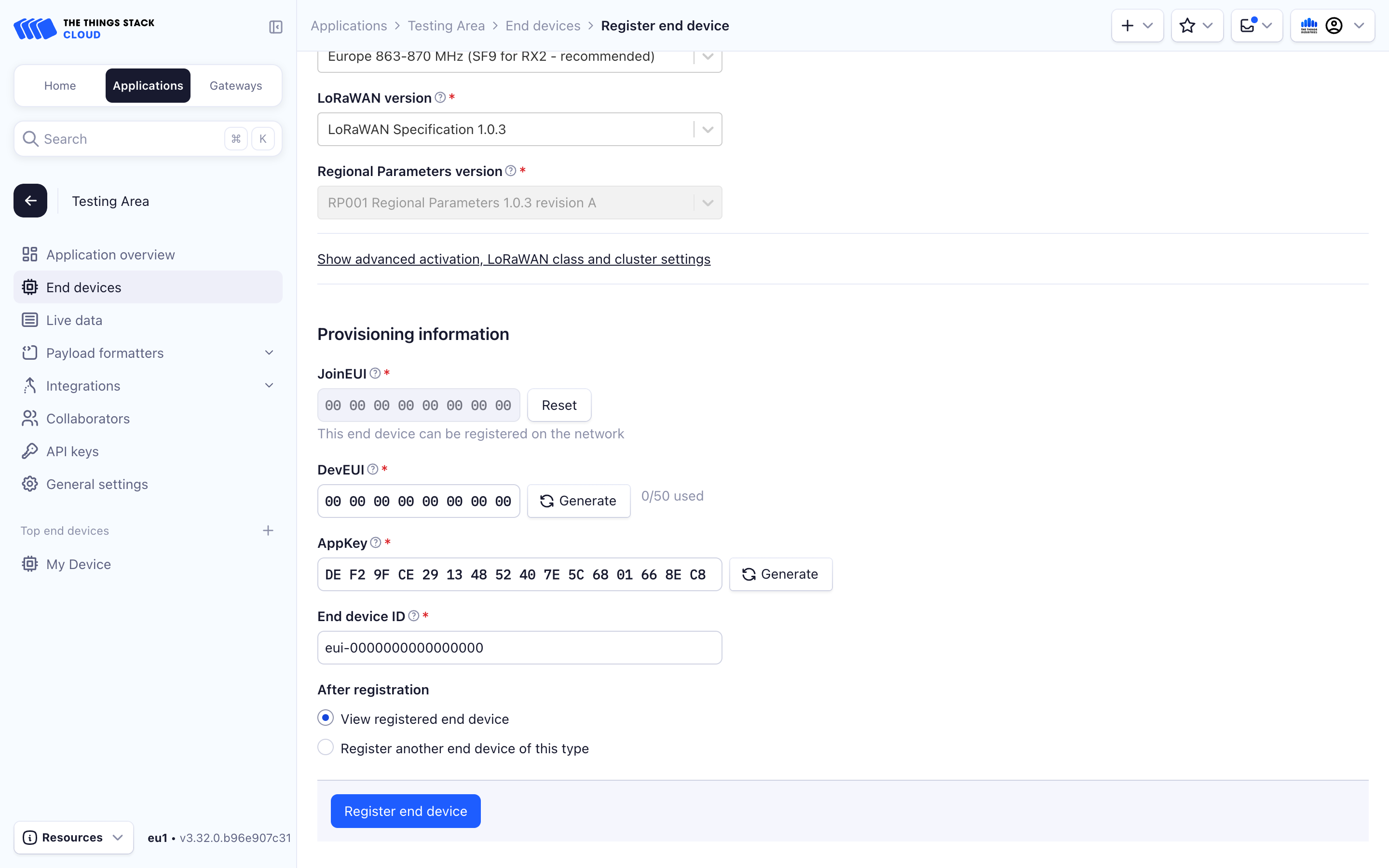
DevEUI, JoinEUI, AppKey, and callsign
The DevEUI is the radio’s 8-byte identifier, written as 16 hexadecimal characters. The JoinEUI, called AppEUI in the firmware, identifies the join configuration. The AppKey is a 16-byte secret, written as 32 hexadecimal characters. Your dashboard callsign is a display name. Changing the callsign does not change the radio’s identity.
Keep the AppKey in TTN and your private firmware configuration. Register the balloon with its callsign and DevEUI, then verify its TTN connection using the steps below. Stratolink never needs the AppKey.
Flying across radio regions
The development firmware selects a plan from a fresh GPS position. TTN registration is separate for each plan, with a unique DevEUI and AppKey for each regional identity. Put those values in the matching _US, _EU, _AS, or _AU fields in the development secrets template. An empty override disables that region in the current development build. Older templates have different fallback behavior.
In Your balloons, use Add a network to connect each regional identity to the same balloon. Enter that identity’s DevEUI, application, and cluster. Stratolink verifies each connection; it does not merge devices because their names or EUIs look alike.
Software region support does not qualify the hardware for every band. The fitted RAK3172-9-SM-NI is the 9xx MHz module. Check the module variant and the permitted plan before enabling another region.
Configure firmware
Start from the source revision supplied for your board. Copy the secrets template, not config.h:
cd firmware
cp include/secrets.h.example include/secrets.h
In the current development template, fill in LORAWAN_DEV_EUI_US and LORAWAN_APP_KEY_US, then set LORAWAN_APP_EUI to the JoinEUI registered in TTN. Use hexadecimal characters without spaces or separators. Leave other regional overrides empty unless you have registered and qualified those regions.
The older public template uses LORAWAN_DEV_EUI, LORAWAN_APP_EUI, and LORAWAN_APP_KEY. Use the names in your checked-out template. Keep secrets.h out of version control.
Follow Build and flash, then power the board with its antennas attached and a clear view of the sky.
Confirm first telemetry
- Open the device’s Live data tab in TTN.
- Look for a successful join followed by an application uplink. A gateway hearing a join request alone does not prove that the device joined.
- Confirm the end device ID, reception time, frame counter, and fPort. Primary telemetry uses fPort 1.
- Open Payload formatters → Uplink on this device. Choose JavaScript and paste the Stratolink uplink decoder. Save, reload, and confirm that the saved source is present.
- Inspect a real uplink. Check that decoded coordinates are fresh and plausible, voltages match your meter, and sensor values are present. The decoder accepts the historical 35-byte packets and the development 40-byte packets.
The decoder belongs on the device unless every device in the application uses the same packet format. Raw frm_payload stays available even when decoding fails. A received packet without a GPS fix is still useful telemetry.
Next, register your balloon on the dashboard. Your TTN application must also forward its packets to Stratolink through a webhook integration.
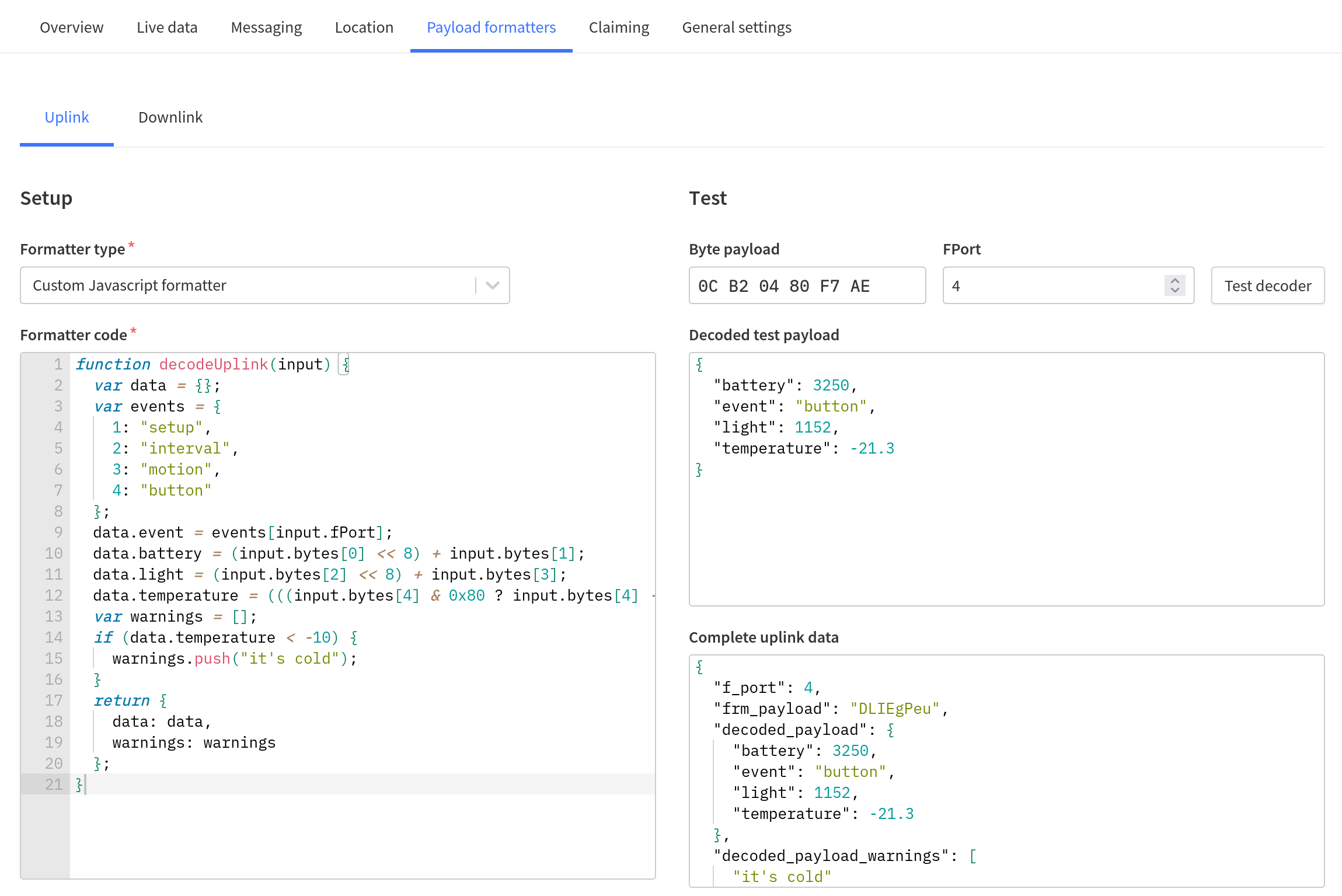
The formatter test only verifies byte decoding. To check the full radio path, use a packet received from the real payload, then find the matching time in dashboard history.
Registering your balloon
Register the radio in TTN first, then open the dashboard.
- Select Sign in with beside the GitHub icon and complete sign-in.
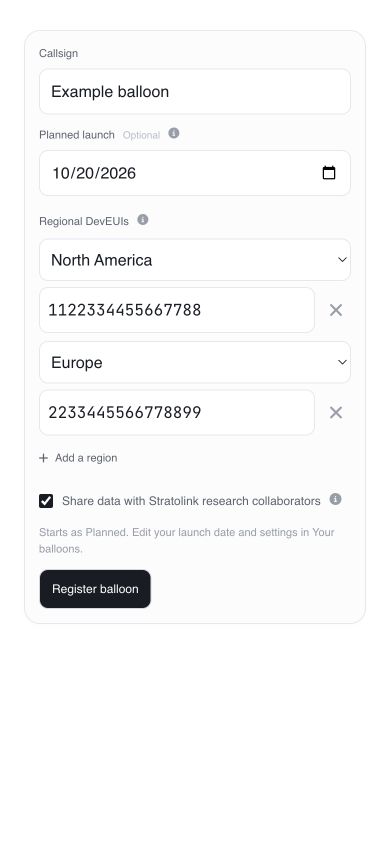
- Select Register. Enter a callsign and add the DevEUI for each radio region you have configured. One region is enough to start. Optionally set a planned launch date, review the research-sharing switch, then select Register balloon.
- In Your balloons, open Connect TTN. Choose a saved region to prefill its DevEUI. Select the cluster shown in your TTN Console URL, enter the application ID, and check the DevEUI. The radio region and TTN cluster are separate settings; an Asian radio plan may use the eu1 cluster.
- In that TTN application, open API keys and create a key with permission to read end devices. Paste it into Application API key, then select Connect.
- Copy the webhook URL and Authorization header shown after verification. Add them to a custom JSON webhook in TTN.
- Send an uplink. Check the connection’s Last received time, then open the fleet card and compare its readings with TTN.
The application API key is used once to verify the TTN device and its frequency plan. Stratolink does not retain it. You can revoke that verification key in TTN afterward; packet delivery uses the separate webhook credential.
New registrations start as Planned. In the fleet, open Filters and enable Planned balloons to see them. They are hidden by default. Telemetry appears after the first accepted uplink. Typing a DevEUI alone does not connect packets or claim an existing balloon. Keep the AppKey in TTN and the private firmware configuration.
A callsign starts with a letter or number and contains 2 to 40 letters, numbers, spaces, periods, hyphens, or underscores. A DevEUI contains 16 hexadecimal characters. Your GitHub profile appears with the balloon.
For another regional identity, choose Add a network on the same balloon and repeat verification with that network’s DevEUI. The cluster identifies the TTN server; the radio frequency plan is read from the device settings. Regional DevEUIs can differ.
Open the hamburger menu and select Your balloons to edit the planned launch date and research preference, manage connections, or change status. Mark the balloon Flying when you launch and Landed when the flight ends. If packets are missing, follow the delivery checks.
Pre-launch checklist
Save the final packet and your measurements with the flight record. A successful bench build alone is not a completed flight check.