

Use the fleet view to find a balloon, then open its card to inspect telemetry and replay the flight.
Fleet view
Open the dashboard. Each card shows a balloon’s status plus altitude, storage voltage, temperature, and received signal strength. Search by callsign, device ID, or owner. Filters controls alphabetical or launch-date order and whether active or inactive balloons appear.
Select a card to expand it. The globe keeps its current zoom and position. Use the left caret beside All balloons to return. The hamburger menu contains map layers and display options.
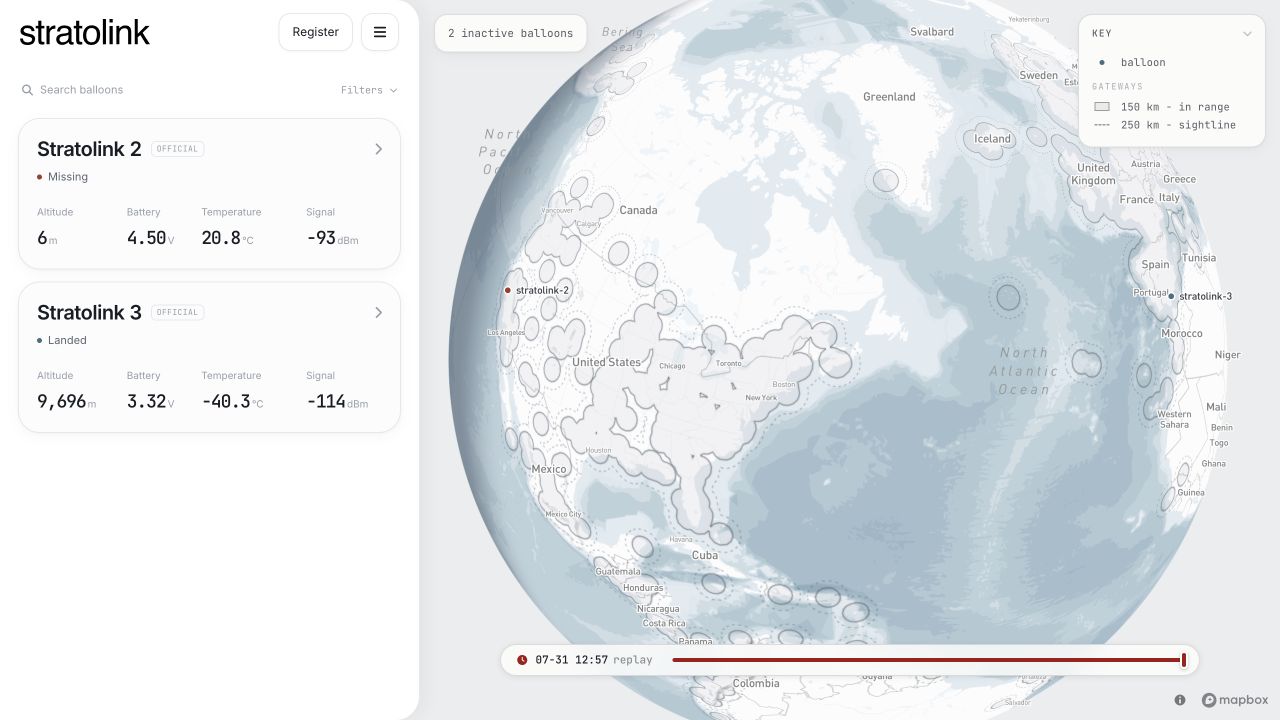
Active means a recent reception for a device that is not marked landed, missing, retired, or planned. The current cutoff is 15 minutes. Since some firmware sleeps for 20 minutes, a healthy device can pass this cutoff between packets. Landed and Missing describe the flight status; they are not inferred from a single radio gap.
The card’s altitude can use the most recent earlier height-bearing sample if the selected packet has no altitude. Open the full view and check packet time before treating all card values as simultaneous.
Flight history
Drag the timeline or select a point on a chart to inspect recorded data. Playback moves through the same history. The expanded panel uses the latest packet at or before the selected time. In a long transmission gap, or when the cursor moves into the forecast, instantaneous readings become blank.
A dash means unavailable, not zero. The map can still hold or interpolate a position between fixes while the sensor panel has no measurement for that moment. Playback in fleet view interpolates between usable fixes; it is not a continuous GPS recording.
Flight time is the span between the first and last loaded telemetry packets. Total distance sums straight great-circle segments between usable fixes. It misses motion between packets and across coverage gaps. Last contact is the elapsed time since the latest received packet, measured from now rather than from the timeline cursor.
Packet time is TTN reception time. The dashboard retains packets that have no usable GPS fix so you can still inspect their other readings. The interface refreshes telemetry periodically while the page is visible; it is not a second-by-second radio feed.
Position and altitude
The map’s latitude and longitude come from payload GPS. Receiving gateways have their own positions, shown only as receiver metadata. A gateway can be hundreds of kilometers from the balloon.
Altitude pres is calculated from measured pressure using a standard-atmosphere model. The small value beneath it is the pressure in hPa. Falling pressure generally means increasing altitude, but weather changes also affect pressure. This is not GPS altitude or a surveyed height above the ground.
The API’s altitude_m is receiver altitude. It can differ from pressure altitude because the two use different measurement methods and reference assumptions. GPS satellite count is useful context, but a larger count alone does not establish the accuracy or freshness of a fix.
Historical packets may repeat stale coordinates. The displayed path rejects invalid coordinates and isolated implausible jumps, but that filtering cannot prove every remaining fix is fresh. Positions labeled approximate have been coarsened for privacy and should not be used for precise distance calculations.
How pressure becomes altitude
The dashboard inverts a standard atmosphere with sea-level pressure 1013.25 hPa and temperature 288.15 K. It uses layers spanning 0 to 32 km, rather than extrapolating a single tropospheric equation through the whole stratosphere. It does not use local weather, a launch-site pressure correction, or the onboard temperature reading.
Outside the model’s supported pressure range, altitude is blank. In particular, a pressure above 1013.25 hPa does not produce a negative altitude in this implementation. The value is useful for following a flight profile, not terrain clearance.
Temperature
Temperature is reported in °C from the payload’s sensor reading. A gradual change can reflect altitude, sunlight, or board heating. Compare the trend with pressure, ambient light, and power measurements rather than attributing every change to ambient air.
The normal source is TMP117; the firmware can fall back to the MS5611’s internal temperature. The packet does not identify that fallback. Read temperature acquisition before comparing different hardware or firmware revisions.
Power, light, and orientation
| Reading | Unit | How to read it |
|---|---|---|
| Storage | V | Storage rail VSTOR. Follow its trend across day, night, and transmissions. Storage voltage is not a calibrated measure of remaining energy. |
| Solar | V | Solar input voltage. A voltage does not prove a particular charging current or power. |
| Ambient | lux | Light reaching the sensor. Shadows and payload orientation matter; this is not solar irradiance. |
| Orientation | degrees | Estimated lean away from the board’s vertical axis, derived from the acceleration vector. Gray indicates a less reliable estimate. |
The orientation estimate assumes the board’s Y axis is vertical. Swinging and acceleration can disturb it because an accelerometer measures motion as well as gravity. It does not measure compass direction or yaw.
The packet also carries raw XYZ acceleration, UV index, and an acoustic-event flag. These are available through the API but do not all have dedicated charts in this panel. The architecture guide explains their sampling and limits.
Radio reception
| Reading | Unit | How to read it |
|---|---|---|
| Gateways | count | Receivers listed for the packet. The denominator is known map gateways within 150 km of its position, not the number that should have received it. |
| GPS sats | count | Satellites used by the receiver. This is independent of the number of radio gateways. |
| RSSI | dBm | RSSI at a receiving gateway. A less negative value is a stronger received signal. This is not the radio’s configured transmit power. |
| SNR | dB | Received signal-to-noise ratio. LoRa can decode some signals with negative SNR, so zero is not a universal failure threshold. |
The summary RSSI and SNR are a single reception record. A packet heard by several gateways can have different values at each one. Gateway distance, antenna orientation, obstructions, interference, and radio settings all affect reception. RSSI alone is not a range measurement.
The receiver count can exceed the denominator when gateways farther than 150 km hear the transmission. Conversely, a nearby gateway on the map may be offline, use a different plan, or fail to receive that packet.
Map layers
- Flight tails: recent history fading behind balloons in fleet view. Off by default.
- Flight paths: full usable history for an expanded balloon. On by default.
- Projected path: the available forecast, off by default in fleet view and on by default when a balloon is expanded.
- Receiving ground stations: receivers of the selected packet and their connecting lines. Available in the expanded view.
- Gateway coverage: known gateway locations and their illustrative coverage layer.
- Day and night: the daylight boundary on the globe.
A receiver without location metadata cannot be drawn. The coverage layer is a geometric guide, not a radio propagation guarantee. Coarsened launch-area locations do not support precise connecting lines.
Forecast lines, ensemble paths, and uncertainty regions are model outputs. A reconstructed path through a GPS gap is also modeled, even though it describes the past. When the model runs out of weather coverage or the paths diverge, the predicted endpoint is not a confirmed present position. No matching forecast means no projected path.
To put your own device on the map, register it, verify its TTN connection, and send an uplink. Follow Registering your balloon.
Your balloons
Sign in with GitHub, open the hamburger menu, and choose Your balloons. Each entry shows its callsign, registered DevEUI, status, and verified network connections. Open Launch and settings to change the callsign, optional launch date, saved regional DevEUIs, or research-sharing preference.
Select Connect TTN for the first connection or Add a network for another regional identity. Each connection shows its frequency plan, application, and last received time. Awaiting telemetry means the device has been verified but no packet has reached that connection yet.
Use the status selector to mark a balloon planned, flying, landed, missing, or retired. Status records what you know about the flight. It does not replace the most recent packet time.
Select Reconnect to replace a lost webhook credential. Update its Authorization header in TTN afterward. See registration and webhook setup for the complete steps.